

 Product
 Brand
Brand Articles
 Tools
Tools
Ultimate Guide to KVM Switches: Definition, Usage, and 2025 Trends

KVM Switch | What is A KVM? | How Does It Work?
Table of Contents:
I. What is a KVM Switch?
Definition
KVM is an acronym for Keyboard, Video, and Mouse. A KVM Switch is a hardware device that enables a user to control multiple computers from a single set of peripherals (one keyboard, one monitor, and one mouse). While the concept originated in server rooms to save space, today it is a staple in home offices, gaming setups, and broadcast studios.

In 2025, the definition has expanded. Modern KVMs are no longer just simple signal switchers; they are sophisticated docking hubs. They can now handle:
High-Resolution Video: 4K at 144Hz, 8K at 60Hz, and Ultrawide resolutions.
Peripheral Sharing: Webcams, USB drives, printers, and audio interfaces.
Power Delivery (PD): Charging laptops via USB-C while transmitting data.
Why Use a KVM? (The "Hybrid" Workflow)
The most common use case today is the "Hybrid Worker." You have a powerful Gaming PC for personal use and a MacBook Pro for work. With a KVM switch, you can press one button to instantly transition your entire desk setup—monitor, mechanical keyboard, mouse, and webcam—from your work laptop to your gaming rig when the workday ends.
II. How Does a KVM Switch Work?
At its core, a KVM switch creates a physical bridge between the input devices (Console) and the target computers (CPUs). However, the technology has evolved significantly from the mechanical switches of the 90s.
1. Signal Routing vs. Emulation
Old switches physically broke the circuit connection (like unplugging a cable). This caused computers to "forget" the mouse and monitor, leading to lag when switching back. Modern KVMs use Signal Emulation:
USB Emulation: The KVM keeps a constant "virtual" mouse and keyboard signal active for every connected computer. This ensures that computers don't freeze or lag while waiting to re-detect drivers when you switch.
EDID Emulation (Video): The KVM stores the monitor's specific data (EDID) and feeds it to all computers continuously. This prevents windows from resizing, rearranging, or moving to a second screen when you switch inputs.
2. KVM over IP
While standard KVMs use direct HDMI/USB cables, KVM over IP digitizes the video and USB signals into data packets. These packets are transmitted over a Local Area Network (LAN) or the Internet. This allows an IT administrator in New York to fix a BIOS issue on a server in Tokyo as if they were sitting right in front of it.
III. Types of KVM Switches (2025 Update)
Choosing the wrong type is the #1 reason for user frustration. Here is the current landscape:
| Type | Best For... | Key 2025 Features |
|---|---|---|
| Standard Desktop KVM | Home Office, Light Gaming | HDMI 2.1, Hotkey switching, Audio mixing. |
| USB-C Hybrid KVM | Laptops (MacBooks, Dell XPS) | Single cable connection (Video + Data + Charging). Acts as a Dock + KVM. |
| High-Refresh (Gaming) KVM | Esports, Hardcore Gaming | DisplayPort 2.1, support for 240Hz/360Hz, G-Sync/FreeSync, practically zero latency. |
| Multi-Viewer KVM | Security, Day Trading | Splits one monitor into 4 quadrants to show 4 computers simultaneously (PiP/PbP). |
| KVM over IP | Data Centers, Remote Mgmt | Remote BIOS access, AES-256 encryption. |
IV. Installation & Usage Guide
Step-by-Step Installation
Many users fail to set up KVMs correctly because they ignore the "Handshake" protocol. HDMI and DisplayPort require a digital handshake to establish a connection.
Power Down: Turn off all computers and the monitor.
Connect Console: Plug your keyboard, mouse, and monitor into the "Output" or "Console" ports on the KVM.
Connect PCs: Use high-quality cables to connect PC1 and PC2 to the "Input" banks. (Note: Do not mix cables—e.g., don't use a cheap HDMI cable for 4K 120Hz).
Power the KVM: Plug in the KVM's power adapter. Do not skip this. Modern USB devices draw too much power for passive switching.
Boot Sequence: Turn on the monitor first. Then turn on PC1 and wait for it to boot to the desktop. Then switch the KVM to channel 2 and turn on PC2.
Switching Methods
Physical Button: Simple and reliable.
Keyboard Hotkeys: Usually
Scroll Lock + Scroll Lock + [1/2]orCtrl + Ctrl + [1/2].Mouse Gesture (Roaming): On advanced models, moving the mouse to the edge of the screen automatically switches to the next computer.
Remote Control: An IR remote or a wired desktop controller button.
V. Advanced Troubleshooting
Even with the best hardware, issues can arise. Here are the most common faults and how to fix them in 2025.
Fault 1: Black Screen / Signal Dropouts / Flickering
Cause: Bandwidth insufficiency. Trying to push 4K@120Hz through a cable rated for 4K@30Hz.
Solution:
Replace HDMI cables with Ultra High Speed (48Gbps) cables.
Replace DisplayPort cables with VESA Certified DP 1.4 or 2.1 cables.
Ensure total cable length (PC to KVM + KVM to Monitor) is under 3 meters (10ft).
Fault 2: Windows Rearrange When Switching
Cause: The KVM lacks EDID Emulation. The computer thinks the monitor was unplugged.
Solution:
Hardware Fix: Buy an "EDID Emulator" plug (ghost plug) for each PC, though this is clunky. The best fix is upgrading to a KVM with "Full-Time DDC/EDID".
Software Fix: On Windows 10/11, use "PersistentWindows" or similar utilities to remember window positions.
Fault 3: Gaming Mouse/Keyboard Not Working (or Laggy)
Cause: The KVM's dedicated "Mouse/Keyboard" ports use basic USB emulation that doesn't understand high-polling rate gaming mice (1000Hz+) or RGB keyboards.
Solution:
Move the gaming mouse/keyboard to the USB 3.0 Hub ports on the KVM (often marked with a standard USB logo). You may lose hotkey switching capability, but the device will work perfectly.
Fault 4: Cannot Login to KVM System
If you are using a rack-mounted Enterprise KVM, you may see a login screen like this:

Solution:
Default passwords are often blank, "admin", "password", or "12345". Check the manual.
If the keyboard isn't typing, unplug and replug it to reset the USB handshake.
VI. Buying Guide: Which KVM Do I Need?
Don't just buy the cheapest option. Match the KVM to your monitor and workflow.
Scenario A: The "Gamer & Worker"
Monitor: 1440p 144Hz or 4K 120Hz.
Needs: DisplayPort 1.4 KVM. HDMI 2.0 KVMs cannot handle high refresh rates (they cap at 60Hz). Ensure it supports G-Sync/FreeSync pass-through.
Scenario B: The "Mac & PC" User
Monitor: 4K IPS.
Needs: USB-C KVM Switch. The Mac connects via one USB-C cable (charging + video), and the PC connects via HDMI + USB-A.
Scenario C: The "Dual Monitor" Power User
Monitor: Two 27-inch screens.
Needs: Dual-Head KVM.
Crucial Note: You must have two video cables coming from each computer into the KVM. You cannot split one cable into two extended desktops unless using MST (which is rare and buggy on Macs).
VII. Frequently Asked Questions (FAQs)
Q: Does a KVM switch introduce latency (input lag) for gaming?
A: High-quality active KVMs introduce virtually zero latency (< 1ms). The signal is electrically passed through. However, avoid "KVM over IP" or software-based KVMs (like Synergy) for competitive FPS gaming, as network lag is noticeable.
Q: Can I use a docking station with a KVM?
A: Yes. The chain should be: Laptop -> Docking Station -> KVM Switch -> Monitor/Peripherals. This is the standard way to connect a laptop that has limited ports to a KVM setup.
Q: Why doesn't my wireless mouse/keyboard work with the KVM?
A: If you use a USB dongle (receiver), it should work fine if plugged into the KVM's USB 3.0 port. Bluetooth-only devices (that connect directly to the PC's internal Bluetooth) cannot be switched by a KVM.
Q: Do KVM switches work with Ultrawide monitors (21:9 or 32:9)?
A: Yes, but check the bandwidth. An Ultrawide 34" (3440x14400) @ 144Hz requires almost as much bandwidth as 4K. Ensure you buy a DisplayPort 1.4 or HDMI 2.1 model.
Q: Can I switch audio (Speakers/Mic) too?
A: Yes. Most KVMs have 3.5mm analog audio jacks. Alternatively, if you use a USB headset or USB DAC, simply plugging it into the KVM's USB hub port will switch the audio device automatically along with the mouse and keyboard.
Q: What is the difference between active and passive KVMs?
A: Passive switches are just physical selectors (like a railroad switch) and are cheap but disconnect the device electrically, causing lag when switching. Active KVMs use chips to maintain signal continuity (emulation), offering a much smoother experience.
 UTMEL
UTMEL
We are the professional distributor of electronic components, providing a large variety of products to save you a lot of time, effort, and cost with our efficient self-customized service. careful order preparation fast delivery service
1. How to switch the KVM Switch?
The KVM switcher switcher methods are generally: button switch, OSD menu switch, shortcut key switch three;
Generally, there are physical buttons on kvm, and you can select the corresponding server/PC by directly pressing the physical button;
The OSD menu is a soft menu inside kvm, select the corresponding server according to the server name displayed on the menu;
Shortcut keys are generally combination keys, such as Ctrl and a data key, four servers 1, 2, 3, 4, select Ctrl+1 to select the first server;
2. What is the difference between KVM Switch and Matrix KVM?
Matrix KVM belongs to a kind of KVM Switch;
Compared with ordinary KVM switches, Matrix KVM manages more servers/PCs, more administrators, longer distances, and better signals.
Transmission can be optical fiber or network cable.
3. What is the difference between a Multi-Computer Switch and a KVM Switch?
The KVM switch is a Multi-Computer Switch.
 The Development Trends in the Field of Electronic Component ApplicationsUTMEL28 July 20235215
Electronic components form the backbone of all the technologies we see around today. Every innovative technology and flashy gadget we use has been fueled by these components. Moreover, electronic component applications expand to diverse fields and industries, including consumer electronics, healthcare, education, military, and similar others.
Read More Exploring the Strengths and Hurdles of Wide Bandgap Devices in Alternating Current Electric DrivesSaumitra Jagdale19 January 20243743
Wide-bandgap materials have emerged as pioneers in the era of power devices, altering the performance and efficiency of electronic systems. Silicon, the traditional semiconductor material, has limitations that become apparent as power requirements escalate. WBG materials, such as silicon carbide and gallium nitride, possess high switching frequency, low losses and high-temperature operating capability making them an ideal choice in power devices.
Read More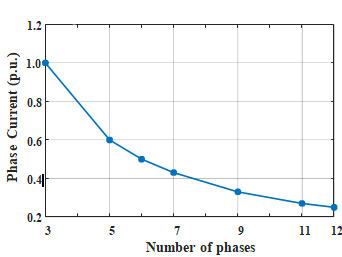 Revolutionizing Automotive Traction: A Comprehensive Review of Multiphase Drives for Next-Generation VehiclesUTMEL04 May 20234420
In recent years, the revolutionary development of power electronics and converters paved the way for more scope for research in multiphase drives.
Read More Unveiling the Magic Behind TWS Earbuds: An Analysis of Their Market, Working, and Core ComponentsUTMEL24 July 20236068
TWS (True wireless stereo) is one of the most advanced sound technologies of recent days. It provides awesome sound quality through Bluetooth Connection. From this little device, you can enjoy anything (movies, videos, etc...) wirelessly.
Read More Automatic Voltage Regulator: Ultimate Guide to Stable Power and Equipment ProtectionUTMEL06 May 202510873
This in-depth manual will explore the realm of automatic voltage regulators. We'll go over what they are, how they work, their important advantages, and factors to take into account while selecting one. By the conclusion, you'll see why an AVR is essential to modern operations and living, not simply a nice-to-have.
Read More
Subscribe to Utmel !
![09034]() 09034
09034Essentra Access Solutions
![0991210]() 0991210
0991210Essentra Access Solutions
![099129]() 099129
099129Essentra Access Solutions
![399121]() 399121
399121Essentra Access Solutions
![099116]() 099116
099116Essentra Access Solutions
![0991110]() 0991110
0991110Essentra Access Solutions
![129911]() 129911
129911Essentra Access Solutions
![099119]() 099119
099119Essentra Access Solutions
![399115]() 399115
399115Essentra Access Solutions
![399126]() 399126
399126Essentra Access Solutions


