

 Product
 Brand
Brand Articles
 Tools
Tools
HDMI Cable Guide: Signal Path, Device Fit, and Selection Checks

All HDMI Cables Are NOT The Same!
Most of us own a handful of HDMI cables without ever thinking hard about them. They live behind the TV, coil up in a drawer, and only get attention when a screen goes black. This guide is for the moment you do need to think about one: when you are buying a replacement, hooking up a new console or monitor, or trying to work out why a perfectly good display has stopped cooperating. The goal here is not to turn you into an electrical engineer. It is to give you enough of a mental model to choose the right cable for your device and to confirm your choice with confidence.
We will follow a simple path. First, what the cable actually does. Then how to read the labels that signal capability, how to recognize the different connector sizes, and how to match a cable to the specific device and port in front of you. After that we draw a clear line between HDMI and DisplayPort, walk through a calm set of checks for when the picture or sound drops out, and finish with a brand-neutral checklist you can run before you buy.
What an HDMI Cable Actually Carries
An HDMI cable does one deceptively simple job: it carries digital video and audio together, over a single connection, from a source to a display. The source is whatever produces the picture, such as a streaming box, a game console, a laptop, or a Blu-ray player. The display is whatever shows it, usually a television or a monitor. Because both the image and the sound travel down the same cable, one connection is normally all you need between the two devices.
The "digital" part matters more than it sounds. The signal is sent as data rather than as a continuously varying analog wave, which is why a working HDMI link tends to look clean or not appear at all, with fewer of the fuzzy, in-between failure states that older analog connections produced. When people say a cable "either works or it doesn't," this digital nature is a big part of why.
It also helps to picture the cable as a pipe rather than a brain. The cable does not decide what resolution or refresh rate you get on its own; the source and the display negotiate that, and the cable simply needs to be capable of carrying whatever they agree on. That framing is the foundation for everything below: when a cable is the limiting factor, it is usually because its capability tier is lower than what the two devices were ready to do.
The HDMI Cable Family Labels and What They Signal
HDMI cables are not all the same, but the difference you care about is rarely visible to the eye. Cables are sold in named capability families, and it is the printed label, not the thickness, the braided jacket, or the price tag, that signals what a cable is built to handle. A heavier, fancier-looking cable is not automatically more capable than a plain one.
The practical takeaway is to read the label and the packaging rather than judging by appearance. The named tiers exist precisely so that a buyer can match a cable to an intended use without measuring anything. When a listing or a cable is vague about which family it belongs to, treat that vagueness as missing information rather than as a reason to assume the highest capability.
Crucially, this guide will not hand you a table of exact bandwidth or resolution numbers per tier, and you should be wary of any casual source that does. Those precise figures are defined in the HDMI standards documentation and are stated on reputable product packaging, and they are the kind of detail that gets revised over time. When an exact number matters for your setup, the reliable move is to read it off the cable's own documentation rather than trusting a remembered figure.
Connector Form Factors: Type A, Type C, and Type D
Beyond capability, HDMI also comes in different physical connector sizes, and recognizing them on sight saves a lot of guesswork. Three sizes cover the vast majority of everyday gear:
Type A (standard): the familiar full-size connector found on televisions, monitors, consoles, AV receivers, and most desktop-class equipment.
Type C (mini): a smaller connector often used on compact devices such as some cameras and tablets where a full-size port would not fit.
Type D (micro): the smallest of the three, used on especially compact devices such as some action cameras and small handhelds.
The simplest way to identify what you have is to look at the port on the device and the end of the cable and compare their sizes directly. If the cable end and the port are different sizes, that does not necessarily mean you are stuck: adapters and cables with different connector sizes on each end exist to bridge between standard, mini, and micro. The key is to confirm the exact size your device's port uses, which the device's own documentation will state, before you buy a cable or an adapter to fit it.
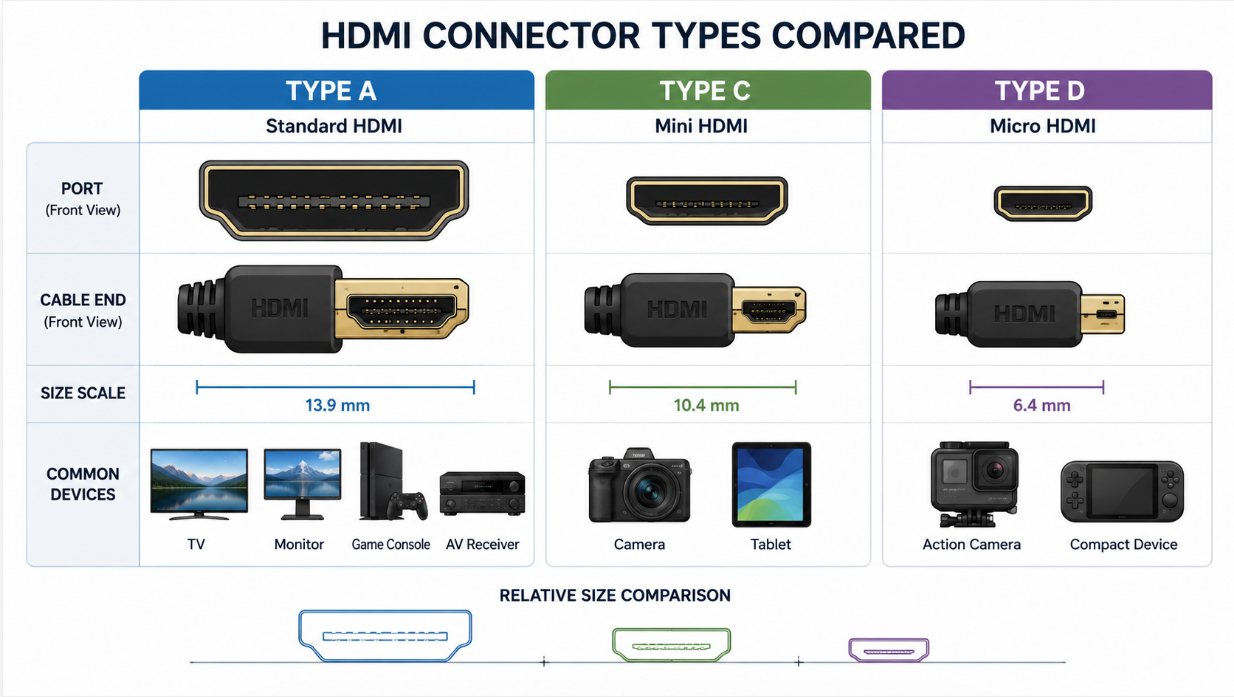
HDMI connectors come in different physical sizes, so matching the port shape is the first step before buying a cable or adapter.
Matching a Cable to the Device and the Port
The most reliable way to choose a cable is to start from the device, not from the cable. Your device's port and its documentation are what ultimately decide what fits and what capability you can actually use. Rather than asking "is this a good cable," ask "what does this specific device need, and does this cable meet it." The orientation table below maps a few common situations to what you should confirm before buying.
| Your situation | What to confirm first | Where to confirm it |
|---|---|---|
| Replacing a cable that used to work | The connector size on both devices and the capability tier the old setup relied on | The labels on your devices and the cable's documentation |
| Connecting a new TV or monitor to a console or PC | That both ends use the connector size you expect, and the capability the display and source are rated to handle | Each device's manual or support page |
| Hooking up a compact device such as a camera or tablet | Whether the device uses a mini or micro connector, and whether you need a cable or an adapter to reach a full-size port | The device's documentation |
| Trying to reach a higher resolution or refresh rate | That the source, the display, and the cable are each capable of that target | The documentation for all three, not the cable alone |
| Running the cable a long distance | That a cable of the length you need is documented to support your intended capability | The cable's own specifications |
The thread running through every row is the same: the cable is one of several links in the chain, and a setup only performs as well as its weakest link. Confirming the device requirements first keeps you from blaming a cable for a limit that actually lives in the source or the display.
HDMI and DisplayPort: Knowing Which Interface You Have
HDMI is not the only digital display interface, and the one people most often confuse it with is DisplayPort. These are separate interface families, developed and maintained by different organizations. A given device might offer HDMI, DisplayPort, both, or neither, so the first useful step is simply identifying what your hardware actually exposes rather than assuming.
You can usually tell them apart by looking. A standard HDMI port and a standard DisplayPort connector have different shapes, and ports are frequently labeled near the socket. Laptops and graphics cards in particular sometimes carry both, which is convenient but also a common source of mix-ups when someone grabs the wrong cable.
This guide deliberately does not crown a winner between the two. They overlap in purpose, and the better choice depends entirely on what your specific source and display provide and what you are trying to do. Because they are distinct families, do not assume a cable or port from one is a stand-in for the other; match the cable to the actual connector your device exposes, and check the device documentation when both options are present.
When the Picture or Sound Drops Out: A Diagnostic Path
When a display goes dark or the sound disappears, the temptation is to change several things at once. Resist it. The fastest way to find the real cause is to isolate one variable at a time and watch what changes. The following ordered path moves from the easiest and most common fixes toward the less likely ones.
Reseat the cable. Unplug both ends and firmly plug them back in. A connector that has worked loose is one of the most common and most overlooked causes.
Confirm the selected input. Make sure the display is set to the specific input the cable is plugged into. Many "dead" screens are simply showing the wrong source.
Try a known-good cable. Swap in a cable you trust. If the picture returns, the original cable or its connection was the problem.
Try a different port. Move the cable to another port on the display or the source. This helps tell a faulty port apart from a faulty cable.
Test the source and display separately. Connect the source to a different display, or the display to a different source, to narrow down which device is actually at fault.
Working through these in order keeps each test meaningful, because you only ever change one thing between checks. By the time you reach the end, you will usually know whether the cable, a port, the source, or the display is responsible, which is exactly the information you need before spending money on a replacement.
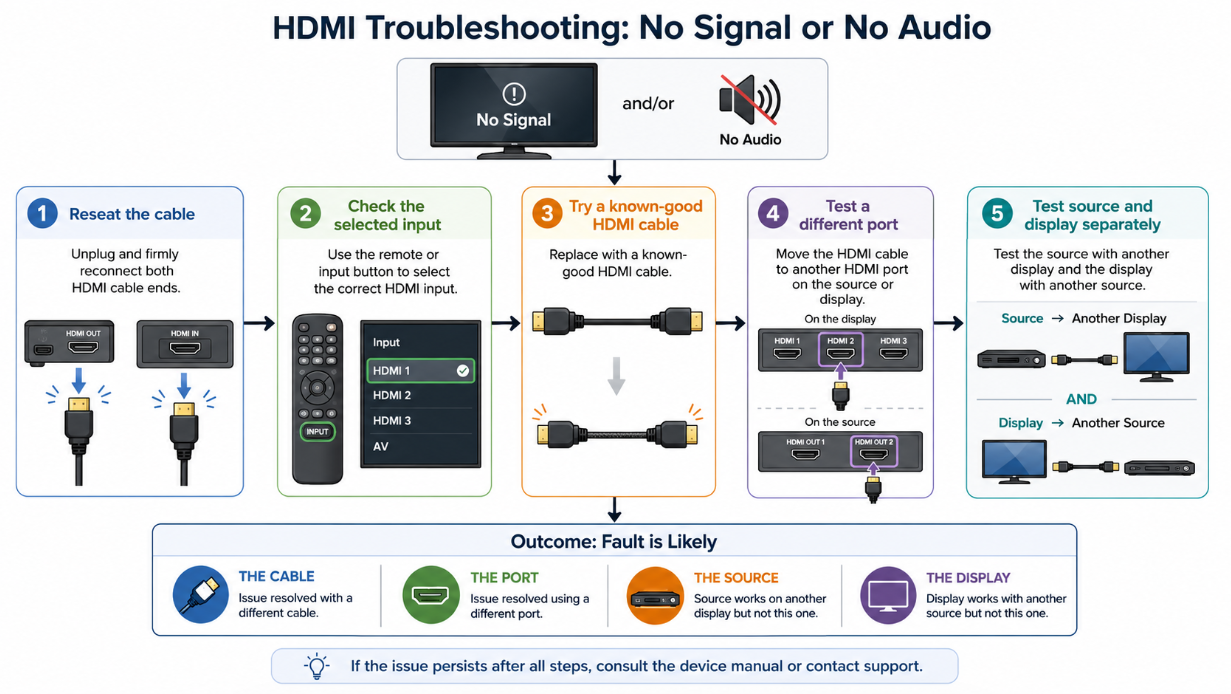
When HDMI video or audio drops out, change one variable at a time to identify whether the cable, port, source, or display is responsible.
A Practical HDMI Cable Selection Checklist
Once you understand the pieces, choosing a cable comes down to a short set of confirmations. The checklist below is intentionally brand-neutral; it is about matching the cable to your situation rather than chasing a particular product.
| Check | What you are confirming | Done when |
|---|---|---|
| Connector size on both ends | The cable physically fits both your source and your display | You have matched standard, mini, or micro to each port |
| Capability tier | The cable's named family is appropriate for what your devices are rated to do | The label states a family that meets your devices' documented capability |
| Length for your run | The cable is long enough without being needlessly long, and is documented for your capability at that length | The length suits your layout and the cable's documentation supports it |
| Documentation available | You can verify the exact figures rather than guessing | The cable or its packaging states the specifications you care about |
| Adapter need | Whether you need an adapter to bridge connector sizes or interfaces | You have confirmed the device ports and whether an adapter is required |
If a candidate cable leaves any of these checks unanswered, that is a signal to look for clearer documentation rather than to assume the best case. A few minutes of confirmation up front is far cheaper than a return.
FAQ
Does a more expensive HDMI cable give a better picture?
Not on its own. Because the signal is digital, a cable that is capable of carrying what your source and display agreed on will deliver that result; one that is not capable will fail more obviously. Price and a premium jacket do not change the named capability tier, which is what actually matters. Read the label rather than the price.
How do I know which HDMI cable I need?
Start from your devices. Confirm the connector size on each port, check what capability your source and display are documented to support, and then choose a cable whose named family meets that. The device documentation is the deciding authority, not the cable in isolation.
Are all HDMI connectors the same size?
No. The common sizes are standard (Type A), mini (Type C), and micro (Type D), used on different classes of device. Compare the cable end to the port on your device, and remember that adapters and mixed-end cables exist to bridge between sizes when needed.
Can I use an HDMI cable in a DisplayPort socket?
HDMI and DisplayPort are separate interface families with different connectors, so a standard cable for one does not simply plug into the other. Match the cable to the actual connector your device exposes, and check the device documentation if your hardware offers both.
My screen is black even though everything is plugged in. What should I check first?
Reseat both ends of the cable, then confirm the display is set to the correct input. Those two steps resolve a large share of "dead screen" cases before you need to test other cables, ports, or devices.
Where do I find the exact bandwidth, resolution, or length a cable supports?
In the cable's own documentation and on the manufacturer's and standards body's pages. Those figures are precise and can change between versions, so confirming them at the source is more reliable than trusting a remembered number.
Why does my setup not reach the resolution or refresh rate I expected?
The result depends on the source, the display, and the cable all being capable of that target. If any one of them falls short, the whole link is limited. Check the documentation for all three rather than assuming the cable alone is the cause.
Sources and references used for this guide
HDMI Licensing Administrator cable resources (hdmi.org). The organization that administers HDMI licensing and the compliance program publishes plain-language pages on what HDMI cables do, how the named capability families work, and how the connector sizes differ. It is an authoritative place to confirm tier names and the certified-cable program, though it focuses on the standard and its licensing rather than on any one product you might buy.
HDMI Forum specification resources (hdmiforum.org). The HDMI Forum is the body that develops the HDMI specification itself, so its material is useful for understanding how cable capability is defined at the standard level. It documents the specification rather than individual retail cables, so lean on it for how the capability framework is structured and confirm a specific cable's figures in that cable's own documentation.
Apple display cables and adapters support guide (support.apple.com). A major device maker's support documentation is a useful, concrete example of how to read a device's own ports and choose the right cable or adapter for a real situation. It is helpful for the device-fit and adapter questions in this guide, with the caveat that it describes one maker's hardware and may not match every brand's port layout.
VESA DisplayPort resources (displayport.org). The standards body behind DisplayPort maintains pages explaining that interface and how it differs from others. It is the right reference for understanding DisplayPort as a separate family, though, like any standards-body page, it documents the specification rather than telling you which interface is best for your particular devices.
These references are best used for qualitative understanding and for looking up exact figures at the source. Where this guide avoids stating a specific number, it is because that detail belongs in current manufacturer or standards documentation, which is where you should confirm it before you buy.
 UTMEL
UTMEL
We are the professional distributor of electronic components, providing a large variety of products to save you a lot of time, effort, and cost with our efficient self-customized service. careful order preparation fast delivery service
 How Big is the DV/DT and DI/DT of the Power Device?UTMEL24 April 202211806
Hello everyone, I am Rose. Welcome to the new post today. This article describes how big the dv/dt and di/dt of high-speed power devices are?
Read More Why is 50 ohms?UTMEL13 June 202211751
Hello everyone, I am Rose.Welcome to the new post today. Today We will discuss why impedance is 50ohm, not 30ohm, 75ohm or 100ohm?
Read More What is Cat 7 Cable?UTMEL04 January 20228674
Cat 7 cable is the latest twisted pair in the ISO/IEC 11801 Cat 7 / Class F standard, which is designed to accommodate the application and development of 10 Gigabit Ethernet technology.
Read More What is a USB Data Cable?UTMEL27 August 202115408
The USB data cable is used for the connection and communication of the computer and external devices. It can also be used for the charging of the phone and the external connection. It is popular for transmitting data and charging.
Read More Understanding of Coaxial CableUTMEL06 August 202140061
Coaxial cable is a broadband transmission line with low loss and high isolation characteristics. This blog introduces the classification, structure, working principle, parameters, and characteristics of coaxial cables.
Read More
Subscribe to Utmel !
![ABM3C-11.0592MHZ-D4Y-T]() ABM3C-11.0592MHZ-D4Y-T
ABM3C-11.0592MHZ-D4Y-TAbracon LLC
![ECS-320-10-37Q-ES-TR]() ECS-320-10-37Q-ES-TR
ECS-320-10-37Q-ES-TRECS Inc.
![9B-35.328MBBK-B]() 9B-35.328MBBK-B
9B-35.328MBBK-BTXC Corporation
![ABS07AIG-32.768KHZ-6-T]() ABS07AIG-32.768KHZ-6-T
ABS07AIG-32.768KHZ-6-TAbracon LLC
![ABL-25.000MHZ-B4Y-T]() ABL-25.000MHZ-B4Y-T
ABL-25.000MHZ-B4Y-TAbracon LLC
![ECS-250-10-37-JTN-TR]() ECS-250-10-37-JTN-TR
ECS-250-10-37-JTN-TRECS Inc.
![ECS-160-12-30BQ-AEN-TR]() ECS-160-12-30BQ-AEN-TR
ECS-160-12-30BQ-AEN-TRECS Inc.
![ABM3-14.7456MHZ-B4Y-T]() ABM3-14.7456MHZ-B4Y-T
ABM3-14.7456MHZ-B4Y-TAbracon LLC
![ABLS2-14.7456MHZ-B1U-T]() ABLS2-14.7456MHZ-B1U-T
ABLS2-14.7456MHZ-B1U-TAbracon LLC
![ABLS2-11.0592MHZ-B1U-T]() ABLS2-11.0592MHZ-B1U-T
ABLS2-11.0592MHZ-B1U-TAbracon LLC


